
Product Feb 2, 2026
We’ve been quietly upgrading the parts that usually steal time: navigation that’s easier to follow, a new Inbox Dashboard for visibility into time savings and accuracy, a self-serve Setup Wizard to speed up onboarding, and a more guided Automations experience so workflows are simpler to configure.
New Navigation

We’ve cleaned up the left navigation to make it easier to find what you need, faster.
You’ll now see two clear tabs under the Phelix logo:
- Worklist: where your day-to-day inbox work happens
- Control Panel: where settings and configurations live
This makes it more obvious which area you’re in, and reduces the “wait… where am I?” clicks.
We’ve also cleaned up and consolidated what you see across both areas:
- Worklist tabs are now easier to follow, so it’s clearer where to go for day-to-day work vs reporting and setup
- Settings have been consolidated with clearer groupings (for example, Clinic Settings and Schedule Settings), so it’s easier to find what you’re looking for without hopping around
Note: You’ll only see the Control Panel tab if you’re an Admin in Phelix.
Inbox Dashboard

Clinics often want a clear view of their ROI: how much time is being saved, and how well the inbox is performing.
The new Inbox Dashboard brings that into one place:
- Estimated hours saved
- % of documents auto-processed
- A quick performance snapshot: Document Type Accuracy, Patient Match Accuracy, Avg Processing Time, and Avg Turnaround Time
You’ll also see auto-processing reports for Auto-save, Auto-chart, and Auto-referral. Each report highlights what prevented a document from being processed automatically, and includes actionable buttonsthat take you directly to the setting you can update.
Where to find it: Worklist → Dashboard
Need a hand? Email us anytime at support@phelix.ai
Automations (formerly Checkpoints)

We’ve refreshed Checkpoints and renamed them to what they actually are: Automations.
The updated experience is more guided and easier to follow:
- You’ll see fields based on the Trigger type you choose (so you only configure what’s relevant)
- A clearer flow from Trigger → Filter → Action
- A dedicated Settings area where key automation-related options live in one place (statuses, types, appointment reasons, referral reasons, messaging hours, automation groups, and more)
- All new accounts now come preloaded with a set of Automations to help you get started faster. You can use them as-is, or customize them to match how your clinic runs.
Net result: less jumping around, and faster setup for common outreach workflows.
Where to find it: Control Panel → Outreach Agent → Automations
Here’s the Automations guide for your reference.
Self-serve Setup Wizard

We heard the feedback loud and clear: implementations shouldn’t feel like a mini-season of a TV show. We’ve streamlined how clinics get set up in Phelix, so you can complete key steps in a guided flow.
The new Setup Wizard walks you through setup step-by-step, including your EMR connection and Inbox setup. For clinics using Accuro, you can also sync key information directly from the EMR once the connection is in place, which reduces manual back-and-forth.
The goal is simple: shorter onboarding, faster go-live.
Where to find it: Worklist → Setup Wizard
Today, the Setup Wizard supports Inbox Agent setup. Support for Outreach Agent and Virtual Agent setup is coming soon.
If you’re not using Inbox Agent yet and you want AI handling incoming documents (faxes, referrals, requisitions, and more), reach out to us and we’ll walk you through what it would look like for your clinic.
You might also like
Articles Product Resources • 10 Jun 2025
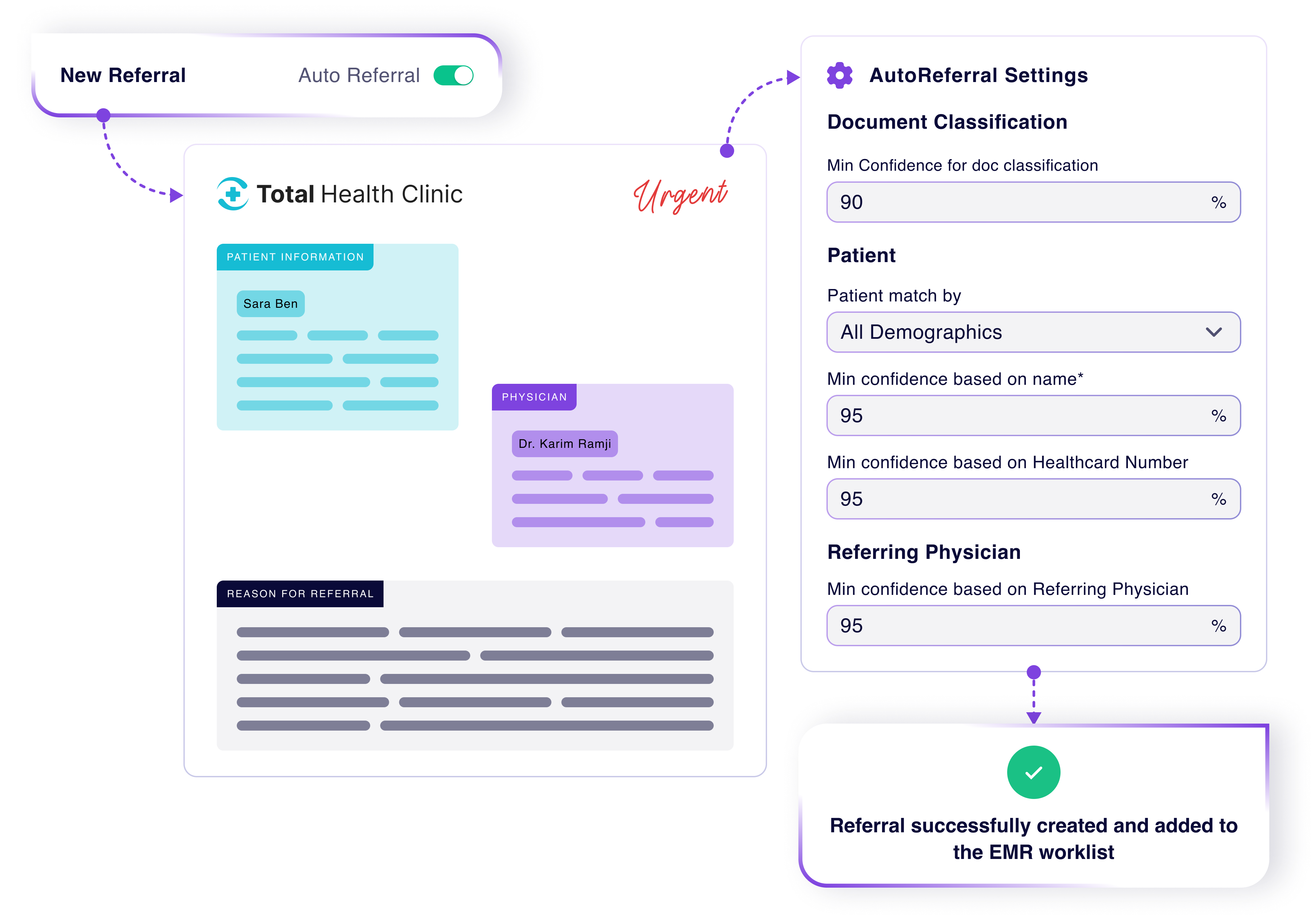
Feature Spotlight: Automate Referral Intake from Fax to EMR
Articles Product Resources • 10 Jun 2025
For specialty clinics, referral intake is a daily grind. Staff spend hours matching patients, reviewing documents, entering details, and creating referrals manually in the EMR. Inbox Agent now...
Articles Product Resources • 15 Apr 2025
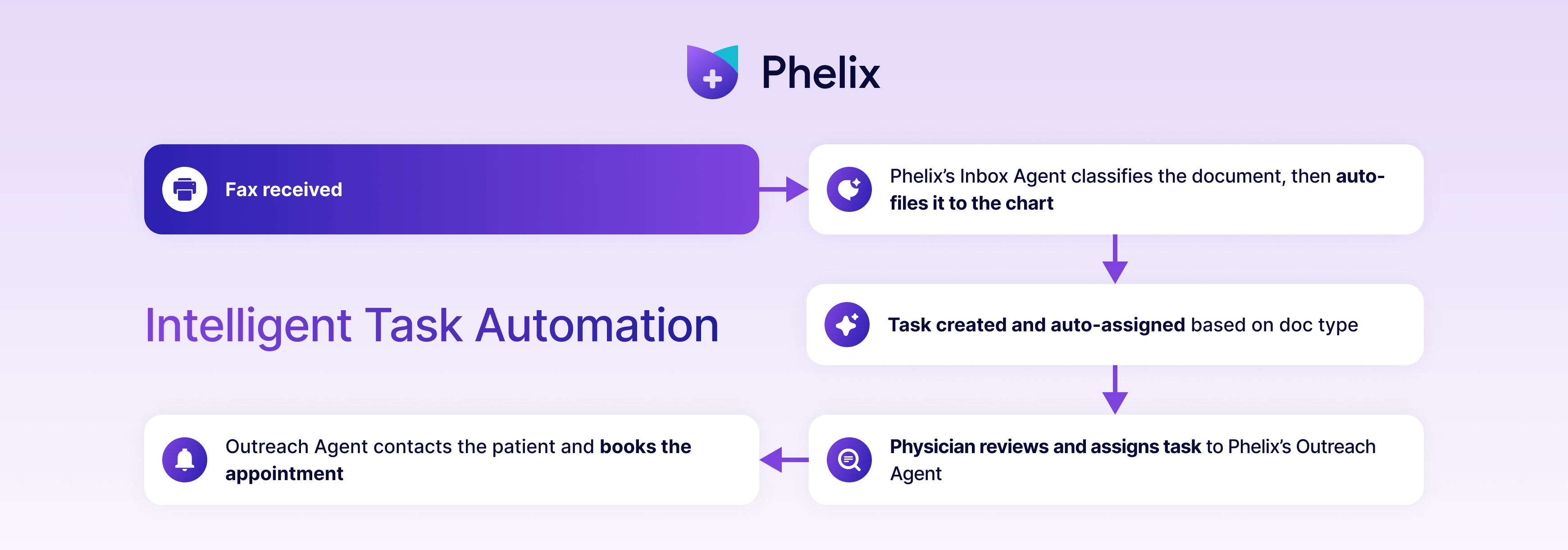
Feature Spotlight: End-to-End Task Automation with Phelix AI
Articles Product Resources • 15 Apr 2025
Managing incoming results isn’t just about filing documents — it’s about taking action quickly. Clinics often face delays between a document arriving, a task being created, and the patient...
Articles Product Resources • 21 Mar 2025
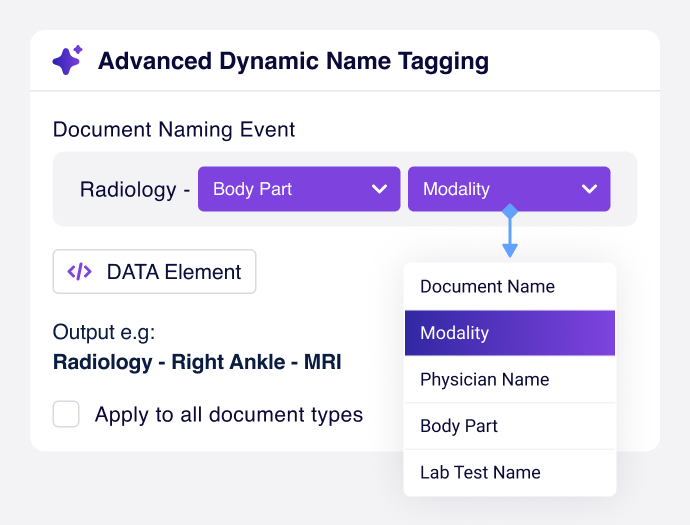
Feature Spotlight: Advanced Dynamic Name Tagging | Inbox Agent
Articles Product Resources • 21 Mar 2025
Managing clinical documents efficiently isn’t just about storing them – it’s about finding the right document, fast. Generic file names like “Report” or “Diagnostic Imaging” make it...
Experience the power of automation
Start customizing your virtual assistant today, or select from pre-existing primary, specialty, or radiology templated workflows. Get in touch to learn more or schedule a free workflow review with one of our automation experts!